

Common WordPress Errors and How to Fix Them (2026)
August 2, 2026 | by anisurrahaman235f@gmail.com
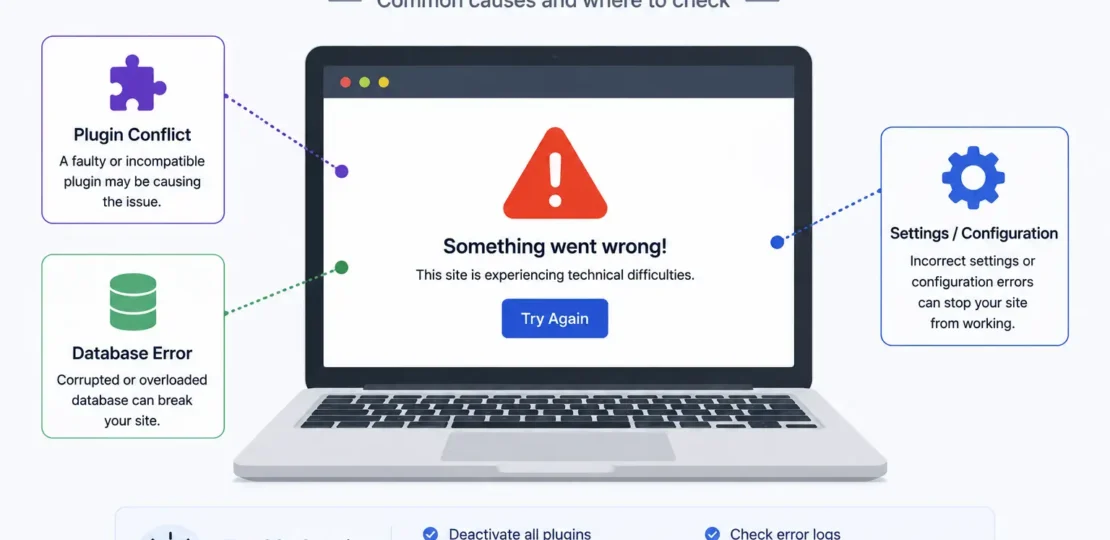
Every WordPress site owner eventually hits the same wall: you load your site expecting it to work exactly like it did yesterday, and instead you’re staring at a blank white page, a cryptic “500 Internal Server Error,” or a login screen that just keeps refreshing itself. It’s alarming in the moment, but the reality is far less dramatic than it feels — WordPress still powers a large share of the entire web, which means these exact errors have been diagnosed and solved millions of times over. Most of them come down to a small handful of root causes: a plugin conflict, a PHP version mismatch, exhausted server memory, or a corrupted configuration file.
This guide walks through the errors WordPress users actually run into most often in 2026, why each one happens, and how to fix it step by step — without needing a developer for most of them.
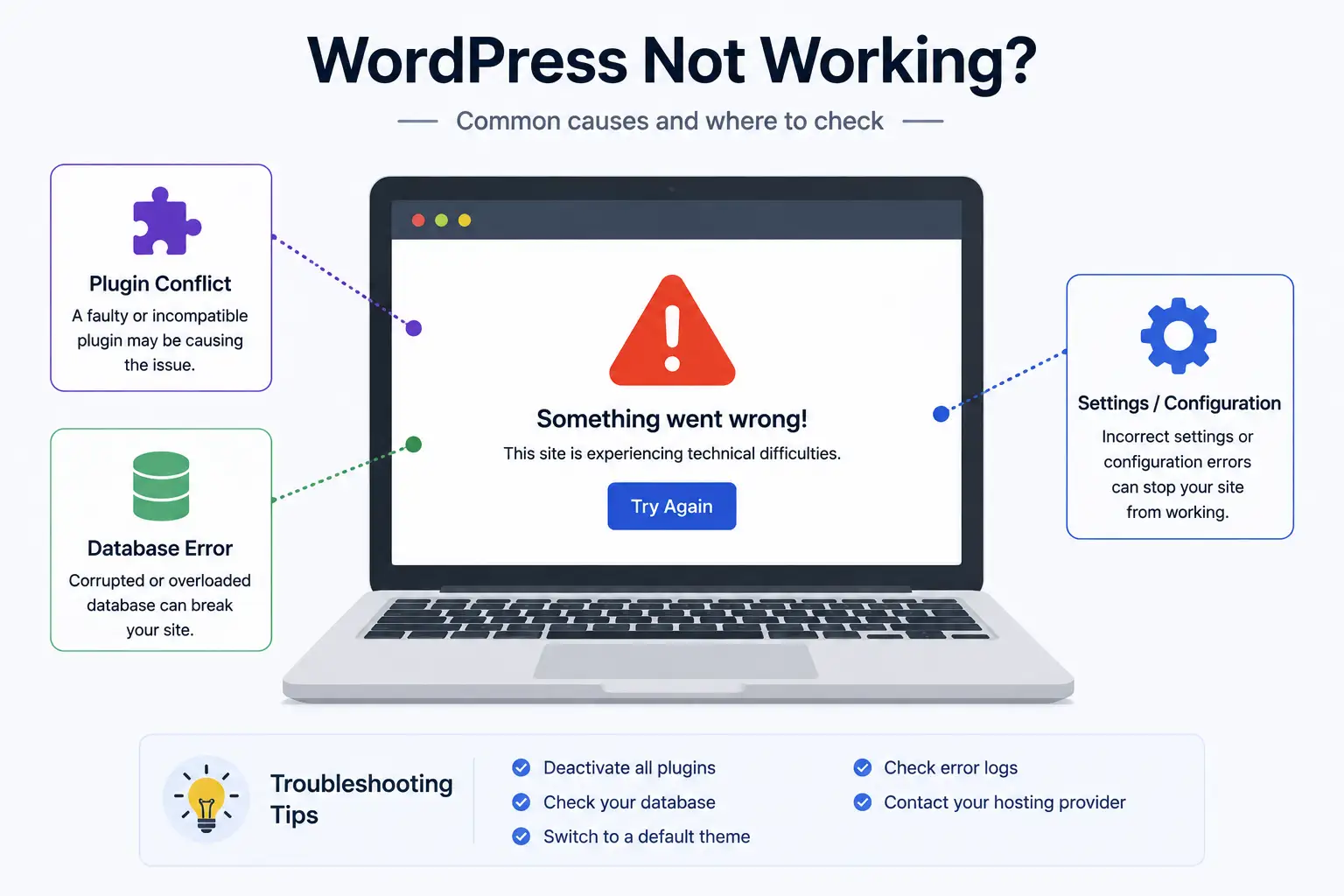
Before You Touch Anything: Two Golden Rules
Regardless of which error you’re facing, two habits apply almost universally and will save you real trouble.
Always back up first. Even a broken site has content worth protecting. Some fixes involve deleting files, editing the database, or reinstalling core components, and doing that without a backup turns a recoverable problem into a potential disaster if something goes wrong mid-fix.
Enable debug logging before guessing. WordPress includes a built-in debugging mode that reveals the exact plugin, theme, or file causing a failure, instead of leaving you with a vague, generic error screen. Add these lines to your wp-config.php file, just above the line that reads /* That's all, stop editing! */:
define( 'WP_DEBUG', true );
define( 'WP_DEBUG_LOG', true );
define( 'WP_DEBUG_DISPLAY', false );
This logs errors to a file rather than displaying them publicly on your live site — important, since showing raw error messages to visitors is itself a minor security risk. Once you’ve identified the cause, remove or disable this again.
1. The White Screen of Death
This is the most infamous WordPress error for a reason: your site loads completely blank, with no error message, no content, nothing. It’s almost always caused by a PHP fatal error — commonly a plugin or theme conflict, or the server running out of allotted memory.
How to fix it:
- Access your site’s files via FTP or your host’s File Manager and rename the
/wp-content/pluginsfolder to something likeplugins-disabled. This deactivates every plugin at once. If the site loads again, rename the folder back and reactivate plugins one at a time to find the culprit. - If disabling plugins doesn’t help, switch to a default WordPress theme (like Twenty Twenty-Five) by renaming your active theme’s folder, which forces WordPress to fall back automatically.
- Raise the PHP memory limit by adding
define( 'WP_MEMORY_LIMIT', '256M' );to wp-config.php, since exhausted memory is a common silent cause of this exact symptom.
2. The 500 Internal Server Error
This error is deliberately vague by design — it simply means something failed on the server side without specifying what. The most frequent causes are a corrupted .htaccess file, an incompatible PHP version, a bad plugin or theme update, or exhausted execution limits.
How to fix it:
- Rename your
.htaccessfile (to.htaccess_old, for example) via FTP or File Manager, then log in to wp-admin and re-save your Permalinks settings, which automatically regenerates a clean version of the file. - Check your hosting control panel for the PHP version currently in use, and confirm it matches what your theme and plugins actually support — an outdated or mismatched PHP version is a common trigger, especially after a hosting migration.
- Deactivate plugins one at a time if the .htaccess fix doesn’t resolve it, since a bad plugin update is the next most likely cause.
3. Error Establishing a Database Connection
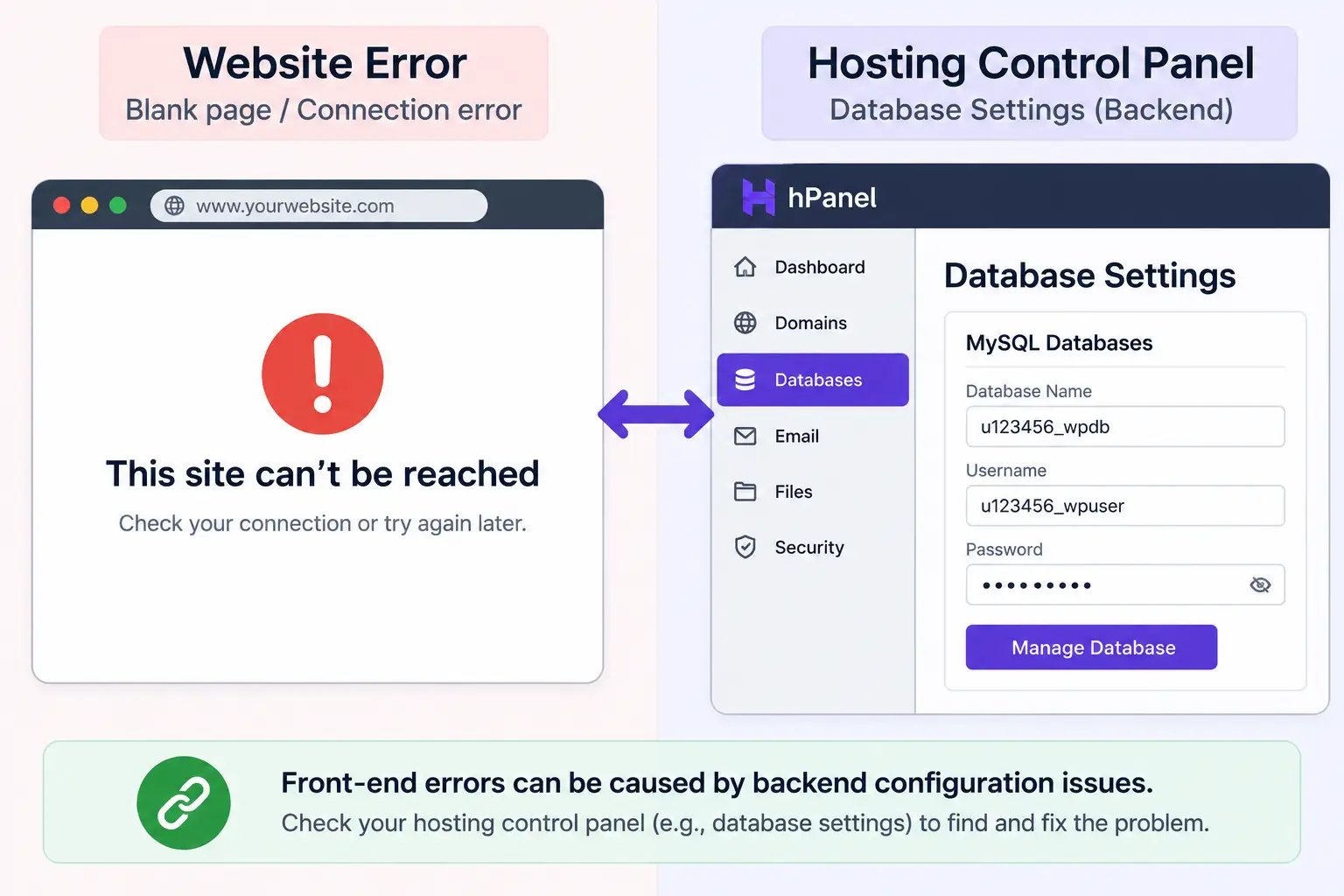
This one is more serious than most, since it typically makes both your front-end site and admin dashboard completely inaccessible. The usual culprits are incorrect database credentials in wp-config.php, an overloaded or down database server (common on busier shared hosting accounts), or actual database corruption.
How to fix it:
- Open wp-config.php and double-check that the database name, username, password, and host values exactly match what’s shown in your hosting account’s database settings — a single typo here is enough to trigger this error.
- If credentials are correct, the database itself may need repairing. Most hosting control panels include a phpMyAdmin tool where you can run a repair operation on the affected database tables.
- If the problem persists, contact your host directly, since a database server outage or resource limit issue on shared hosting is outside what you can fix from the WordPress side alone.
4. 404 Not Found / Broken Permalinks
A 404 error on pages that used to work fine is usually a permalink structure problem, not actually missing content. This often happens after a migration, a theme change, or a server configuration reset.
How to fix it:
- Go to Settings → Permalinks in your WordPress dashboard and click Save Changes without altering anything — this alone regenerates the rewrite rules and .htaccess file that make custom URLs work.
- If that doesn’t help, confirm your
.htaccessfile has proper write permissions, since WordPress needs to be able to modify it to apply new permalink rules correctly.
5. 403 Forbidden Error
A 403 means the server is actively refusing access to a specific page or resource, typically due to file permission issues or an overly aggressive security plugin or firewall rule blocking legitimate traffic.
How to fix it:
- Check file and folder permissions through your host’s File Manager — standard WordPress permissions are generally 644 for files and 755 for directories; anything significantly different can trigger this error.
- Temporarily disable security plugins one at a time to check whether one of them is misfiring and blocking access incorrectly.
- Review your
.htaccessfile for any recently added rules that might be restricting access unintentionally.
6. Login Page Redirect Loop
You enter your credentials, the page reloads, and you’re sent right back to the login screen — over and over — without ever reaching the dashboard. This is usually caused by corrupted cookies or a conflicting plugin, sometimes combined with incorrect site URL settings.
How to fix it:
- Clear your browser’s cookies and cache for your site specifically, then try logging in again in a private/incognito window to rule out a local browser issue.
- Check the
siteurlandhomevalues in your WordPress database (via phpMyAdmin) to confirm they match your actual domain exactly, including the correct http vs. https prefix. - Disable plugins via FTP as described earlier if clearing cookies doesn’t resolve it, since a security or caching plugin misconfiguration is a common cause.
7. Memory Exhausted / Fatal Error: Allowed Memory Size Exhausted
This error explicitly tells you what happened: your site tried to use more memory than PHP was allowed to allocate, usually triggered by a resource-heavy plugin, a poorly optimized theme, or simply a hosting plan with a low default memory limit.
How to fix it:
- Add or increase the
WP_MEMORY_LIMITline in wp-config.php as shown earlier in this guide. - If increasing the limit doesn’t help, the underlying cause is likely a specific plugin consuming excessive resources — deactivate recently added or updated plugins to isolate which one is responsible.
- Consider whether your current hosting plan’s resource allocation still matches your site’s actual needs, especially if this error started appearing after your site grew significantly in traffic or content.
8. Mixed Content and SSL-Related Errors
If your site loads but shows a “Not Secure” warning or specific elements (images, scripts, embedded content) fail to load, you’re likely dealing with a mixed content issue — some resources on the page are still being loaded over insecure HTTP even though the rest of the site is on HTTPS.
How to fix it:
- Update your WordPress Address and Site Address under Settings → General to use
https://rather thanhttp://. - Use a plugin like Really Simple SSL, which automatically detects and rewrites internal links that are still pointing to insecure HTTP versions of your own resources.
- Check any hardcoded image or script URLs within your theme files or page content that might still reference the old http:// address directly.
9. Site Stuck in Maintenance Mode
Occasionally, after a plugin or core update fails partway through, WordPress gets stuck displaying a “Briefly unavailable for scheduled maintenance” message indefinitely, even though the update actually completed.
How to fix it:
- Connect via FTP or File Manager and delete the
.maintenancefile from your site’s root directory — WordPress creates this temporary file during updates and is supposed to remove it automatically once finished, but a failed or interrupted update can leave it behind.
10. Gateway Errors: 502, 503, and 504
These server-side errors (502 Bad Gateway, 503 Service Unavailable, 504 Gateway Timeout) generally point to the server struggling to respond in time, often due to heavy traffic, an overloaded shared hosting account, slow external API calls a plugin is waiting on, or resource-intensive database queries.
How to fix it:
- Check whether a specific plugin makes external API calls (payment processors, shipping calculators, third-party integrations) and test disabling it temporarily to see if the timeout resolves.
- Review recent traffic spikes, since a sudden surge can genuinely overwhelm a lower-tier shared hosting plan’s available resources.
- If this happens repeatedly rather than as an isolated incident, it’s often a sign your hosting plan’s resources no longer match your site’s actual traffic and complexity.
When to Use WordPress’s Built-In Recovery Mode
Since WordPress 5.2, the platform includes a Recovery Mode feature that automatically emails site administrators a special recovery link when a fatal error is detected, letting you log in to a limited admin view specifically to disable the plugin or theme causing the crash — without needing FTP access at all. If you’re locked out and don’t have FTP credentials handy, check your admin email inbox first before assuming you need file-level access to fix the problem.
Final Thoughts
Nearly every WordPress error, however alarming it looks on screen, traces back to one of a small number of underlying causes: a plugin conflict, a resource limit, a corrupted configuration file, or a mismatched setting. Working through them methodically — back up first, enable debug logging, isolate the cause by disabling plugins or switching themes temporarily — resolves the overwhelming majority of these issues without needing to call in outside help. Keep this guide bookmarked; the next time your site throws an unfamiliar error, there’s a good chance it’s already covered above.
RELATED POSTS
View all

Hostinger vs Namecheap Hosting: Detailed Comparison (2026)
August 2, 2026 | by anisurrahaman235f@gmail.com
What Is Web Hosting and How Does It Work? (2026 Beginner’s Guide)
August 1, 2026 | by anisurrahaman235f@gmail.com
How to Connect a Domain Name to Hostinger Hosting (2026 Guide)
August 2, 2026 | by anisurrahaman235f@gmail.com